Put Vying on your Home Screen
Vying is a web app, so there is nothing to download from an app store. Add it to your Home Screen once and it works like any other app on your phone.
- One tap to open, instead of finding Safari or Chrome and typing the address.
- Full screen, with no browser bar in the way.
- Notifications when someone passes you or cheers your workout, even when Vying is closed. On an iPhone this only works once Vying is on your Home Screen.
iPhone and iPad
Open Vying in Safari or Chrome.
Open the Share menu. In Safari, tap the three lines at the left end of the address bar, then tap Share . In Chrome, tap the Share button at the right end of the address bar.
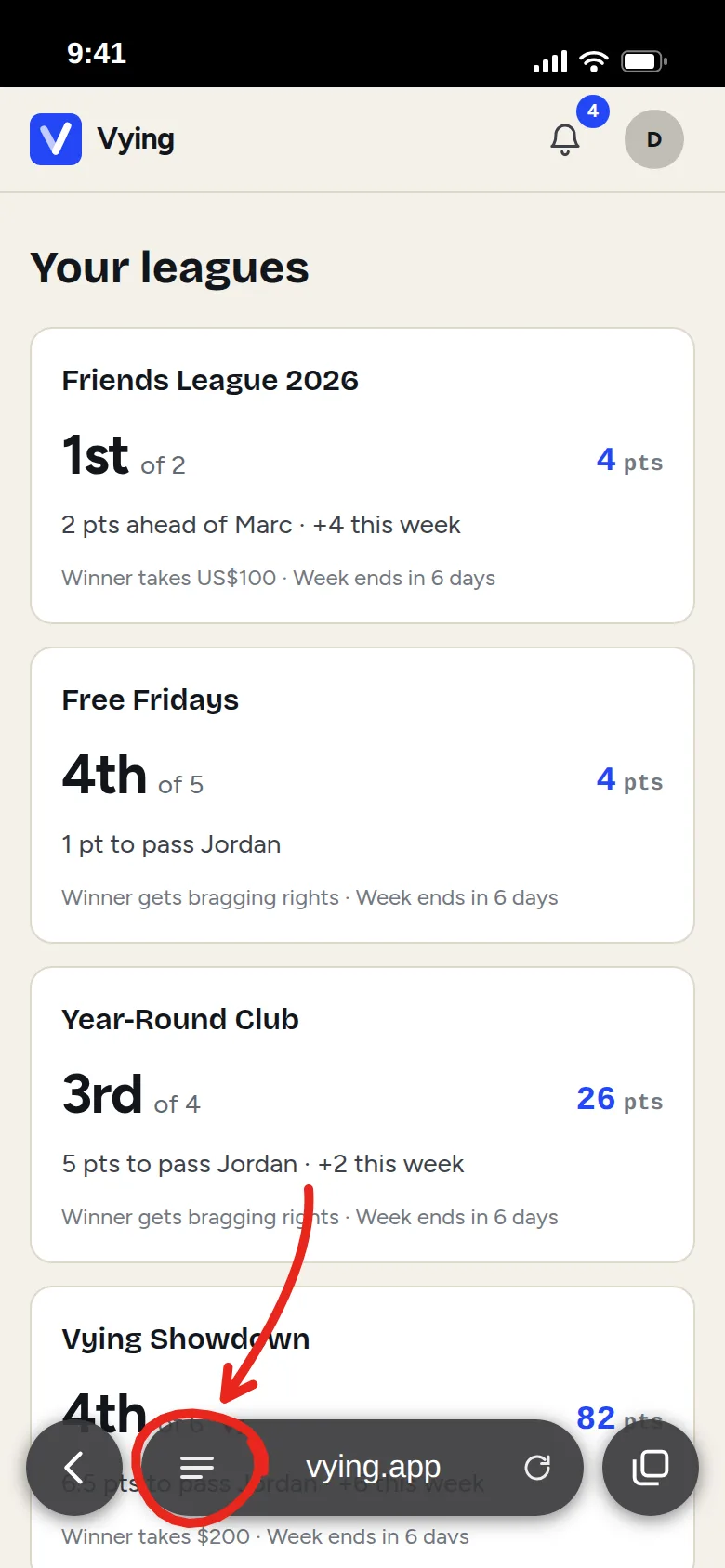
Safari: tap the three lines 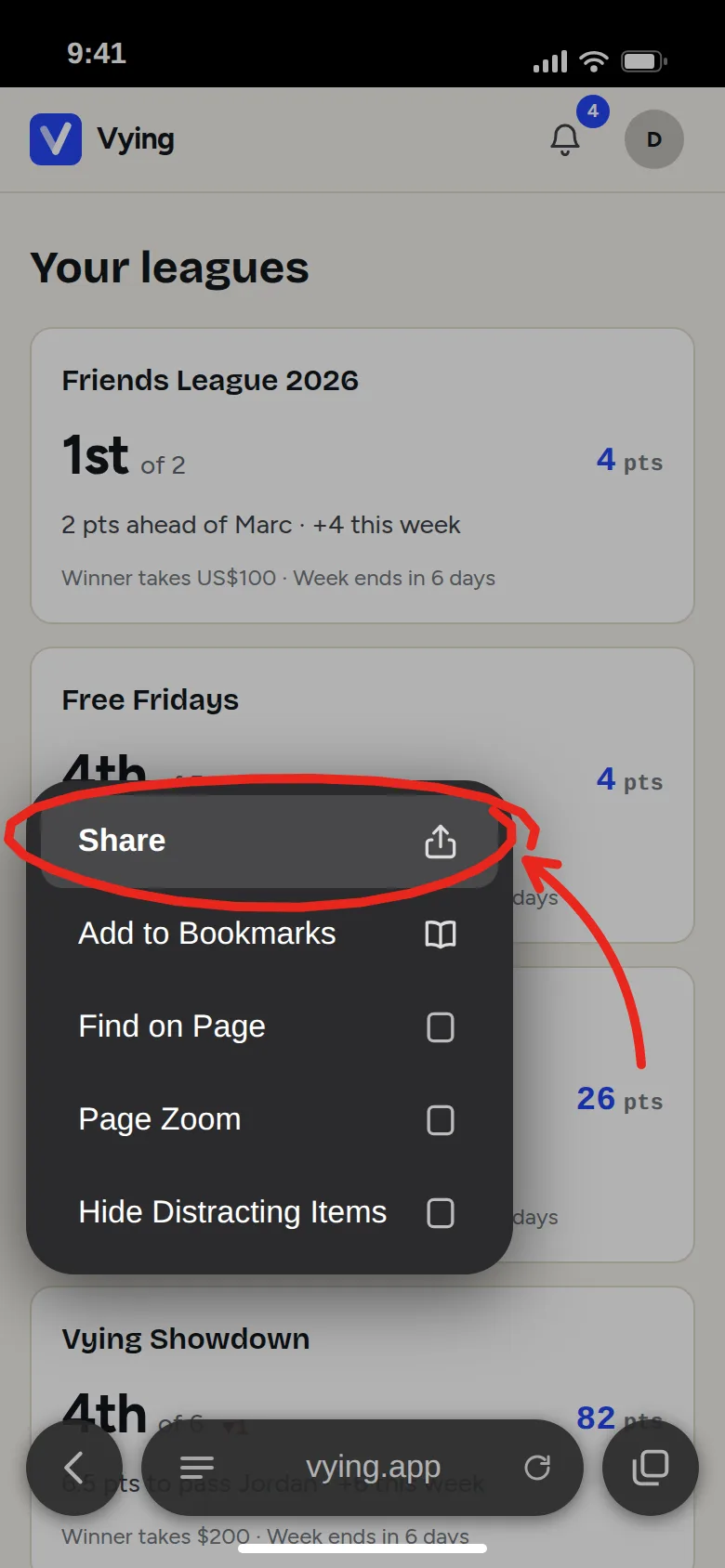
Safari: then tap Share 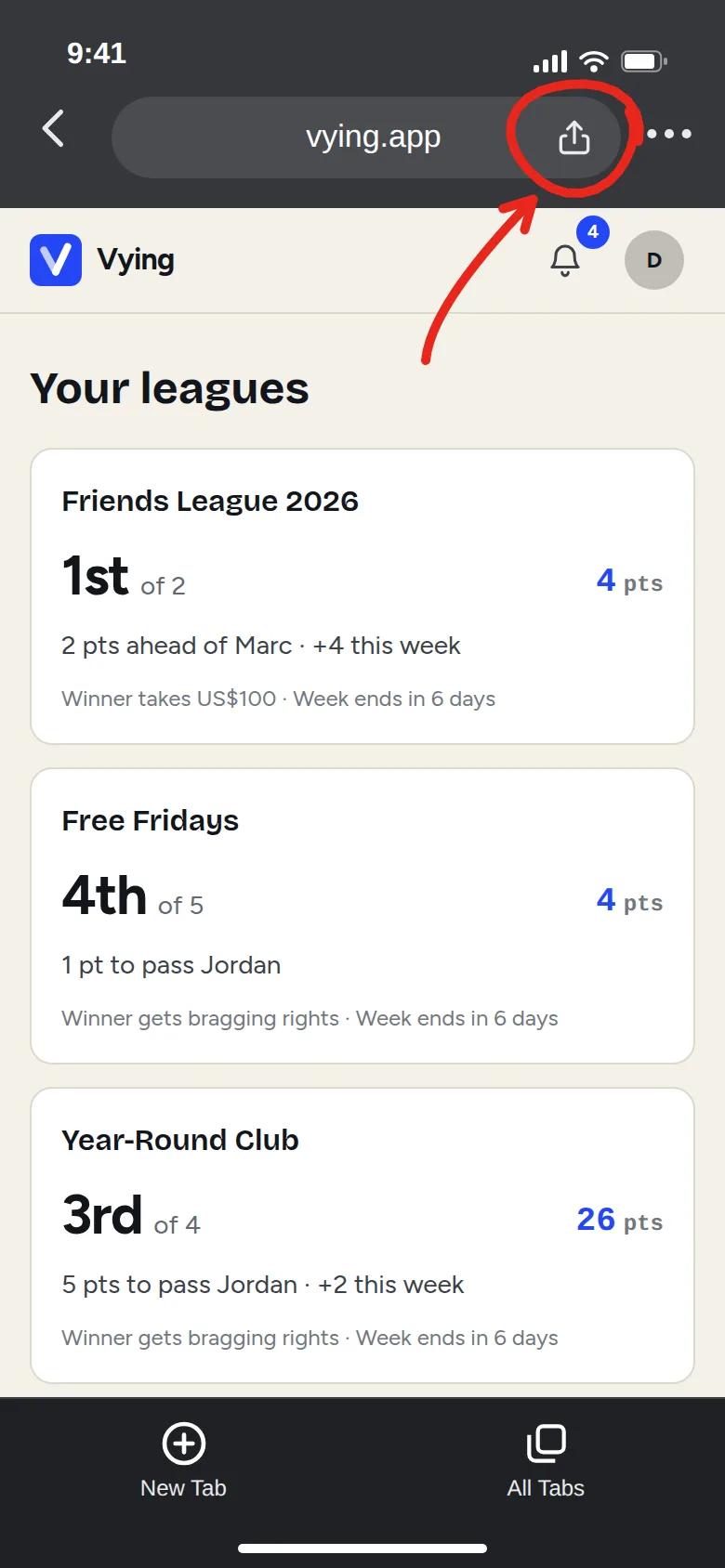
Chrome: tap Share Tap View More.
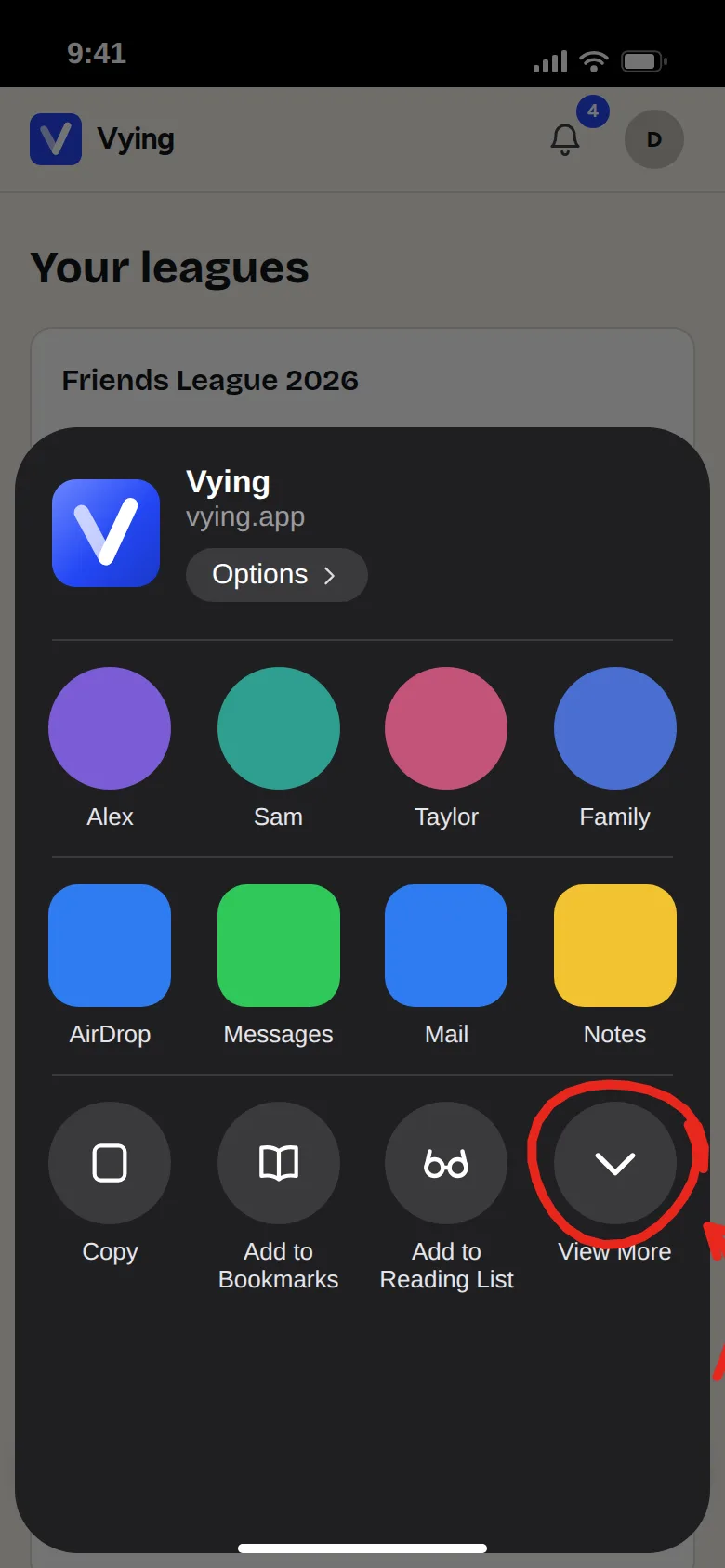
Tap Add to Home Screen . You may need to scroll down to see it.
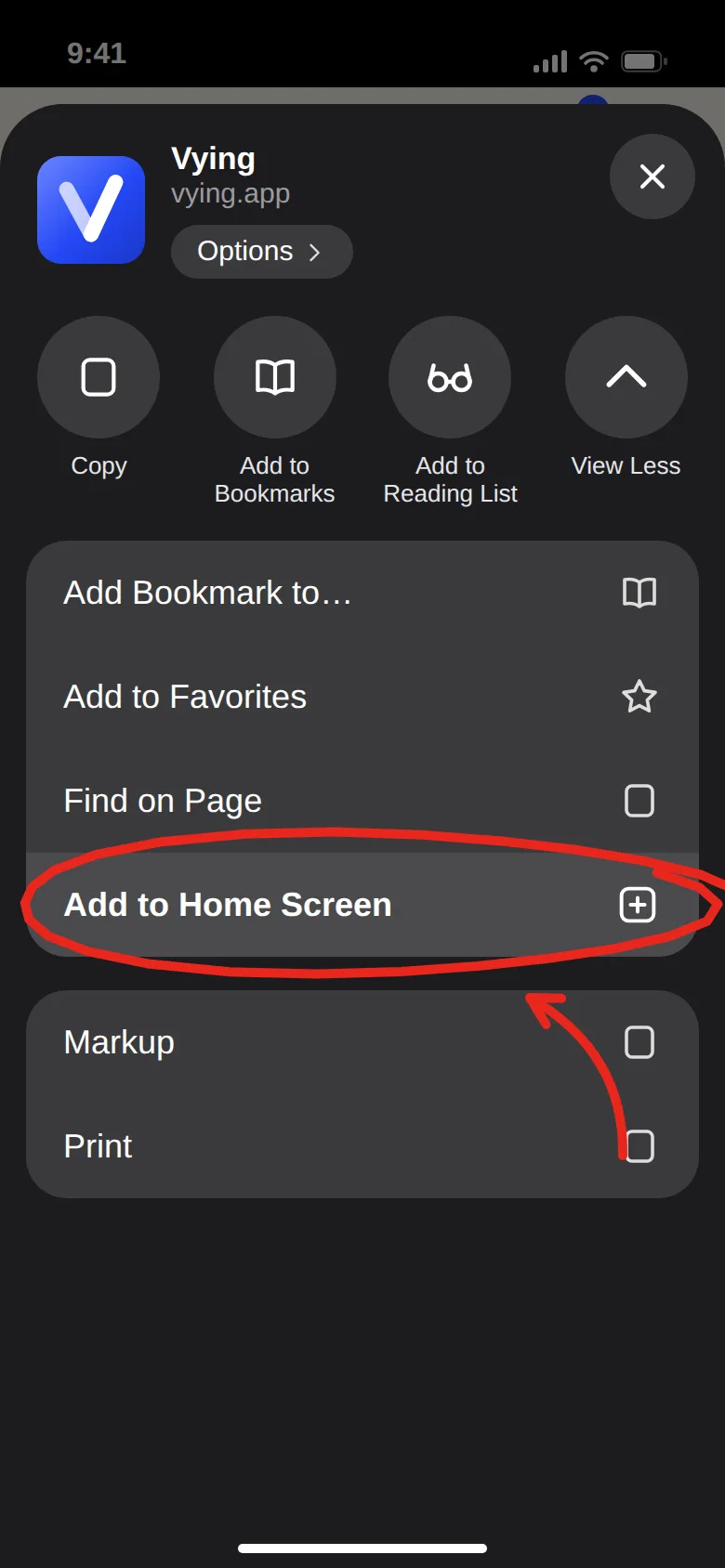
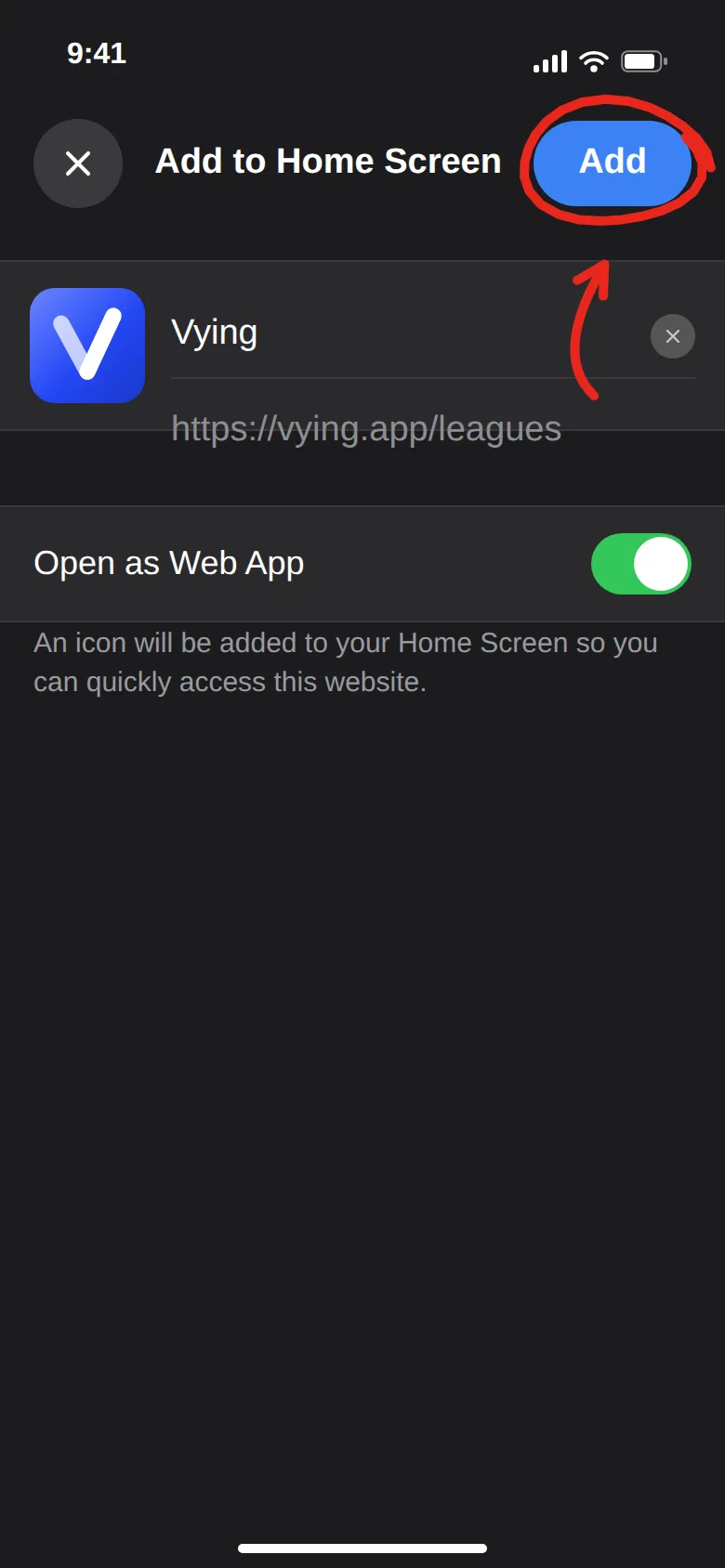
If you see an Open as Web App switch, leave it on. Then tap Add.
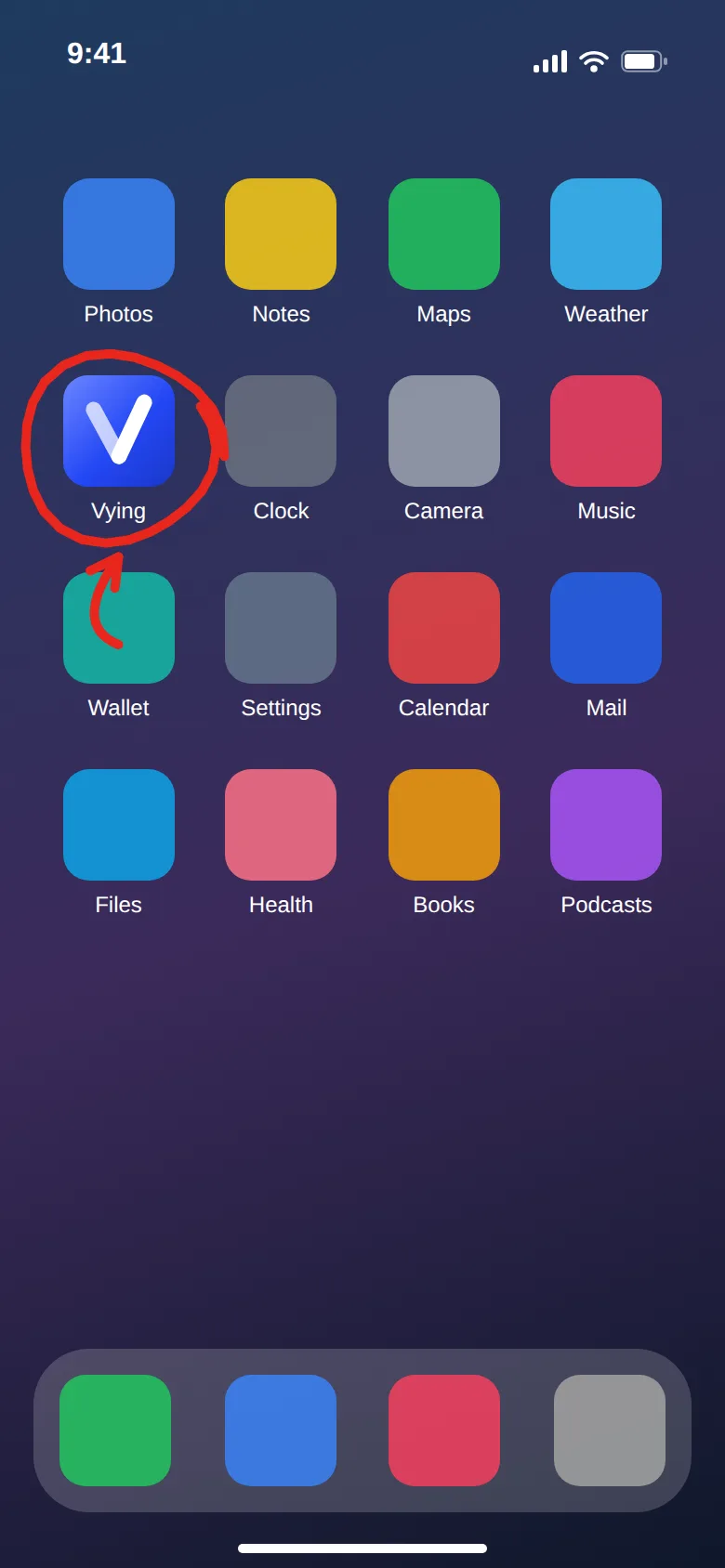
Open Vying from the new icon on your Home Screen. Sign in if it asks.
The pictures are drawings with made-up names and scores. Your screen may look a little different.
On an iPad the buttons are at the top of the screen instead of the bottom. If you use another browser and don't see Add to Home Screen in its Share menu, open Vying in Safari instead.
Android
Open Vying in Chrome.
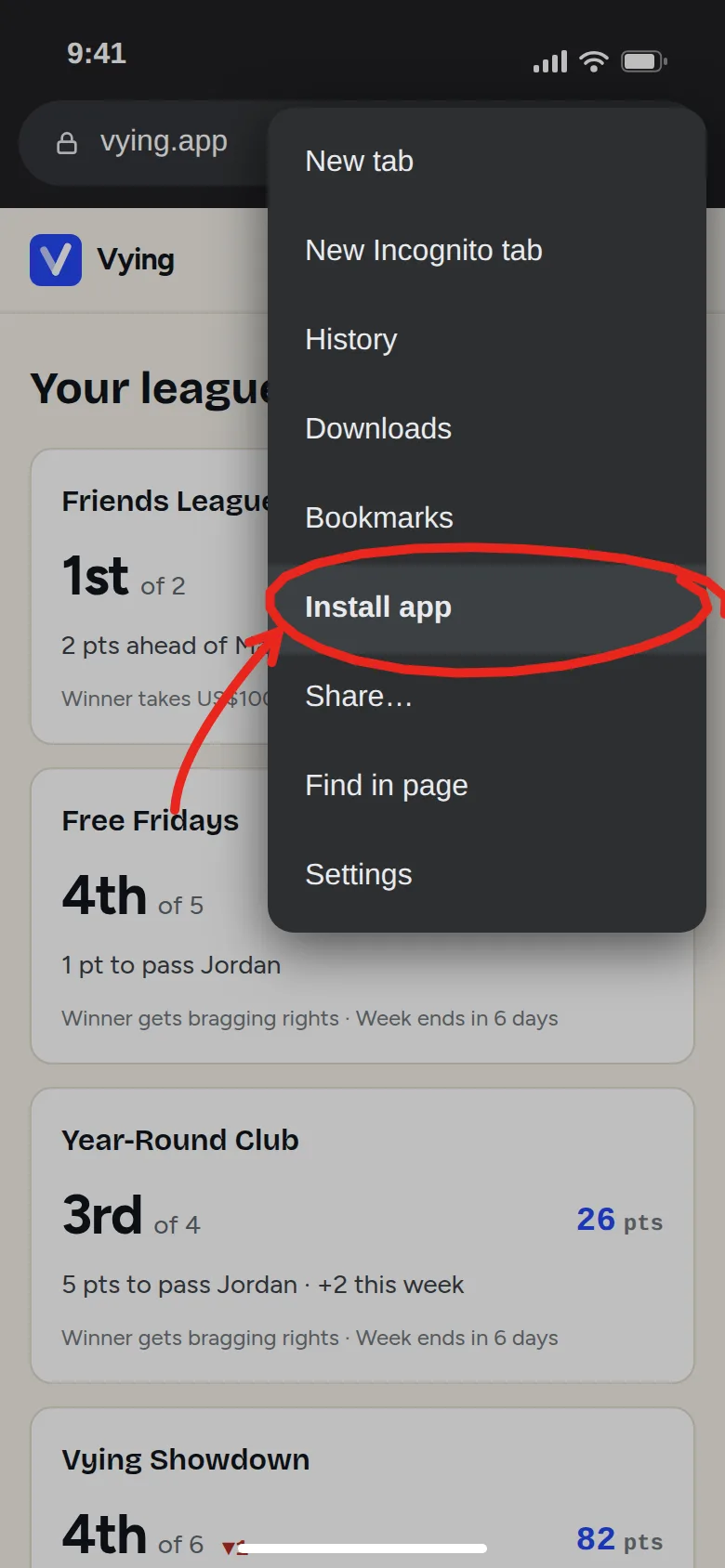
Tap the menu at the top right.
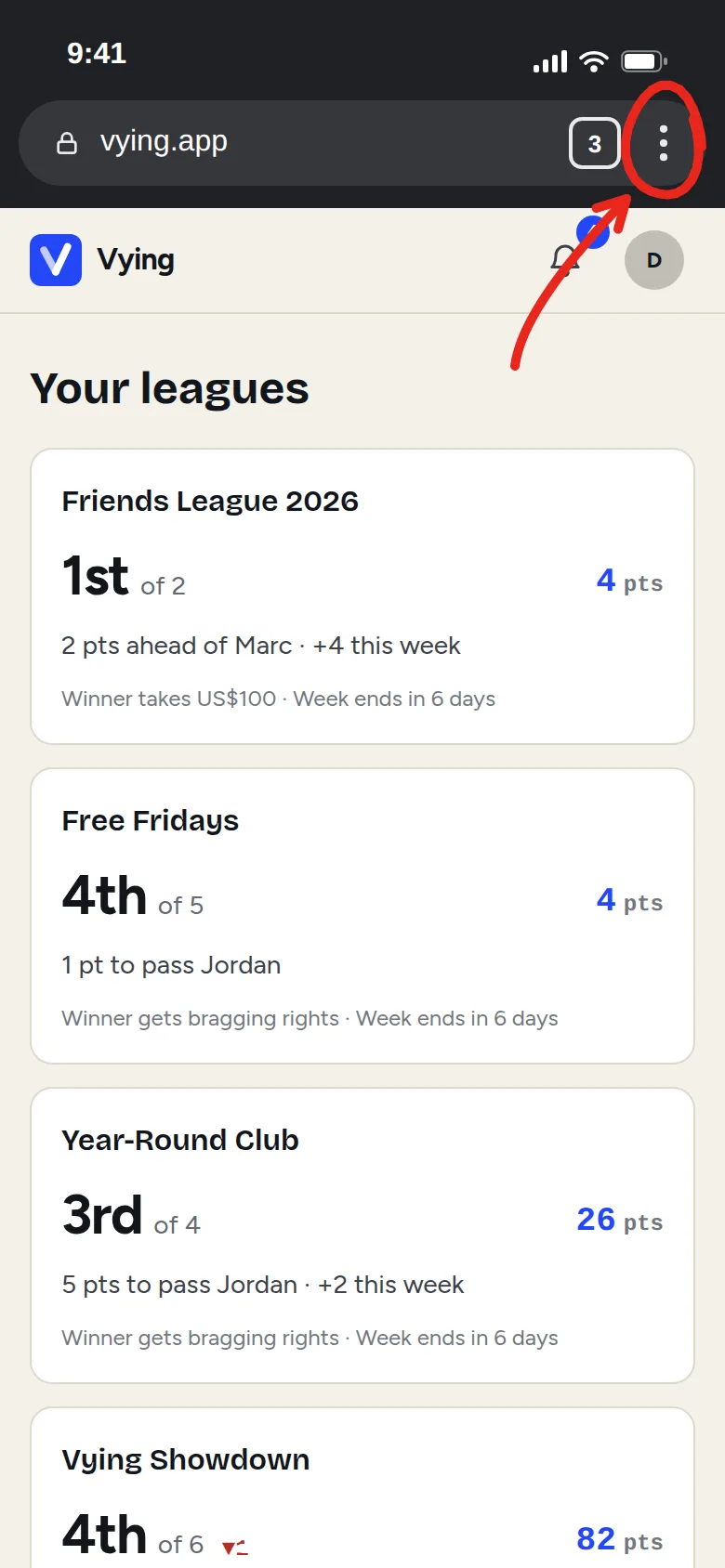
Tap Install app. On some phones it says Add to Home screen.
Tap Install (or Add) to confirm.

Open Vying from your home screen or your app list.
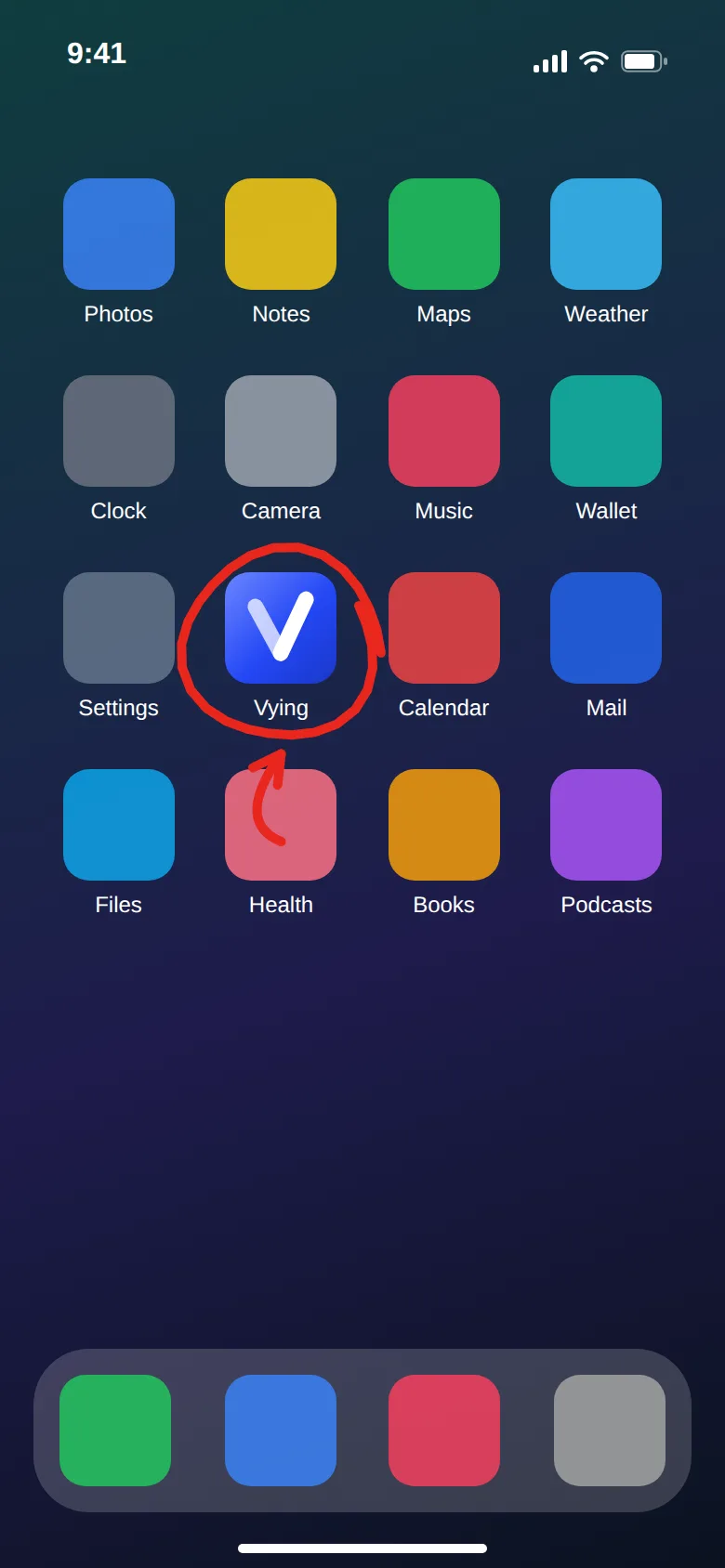
The pictures are drawings with made-up names and scores. Your screen may look a little different.
On Samsung Internet: tap the menu, then Add page to, then Home screen.
A computer
Open Vying in Chrome or Edge.
In Chrome, click the three dots at the top right, then Cast, save, and share, then Install Vying. In Edge, click the three dots, then Apps, then Install this site as an app.
You may also see a small Install icon (a screen with a down arrow) at the right end of the address bar. Clicking it does the same thing.
Click Install in the box that appears. Vying opens in its own window and gets its own icon.
On Safari for Mac: choose File, then Add to Dock.
Added it already? Log in.